




















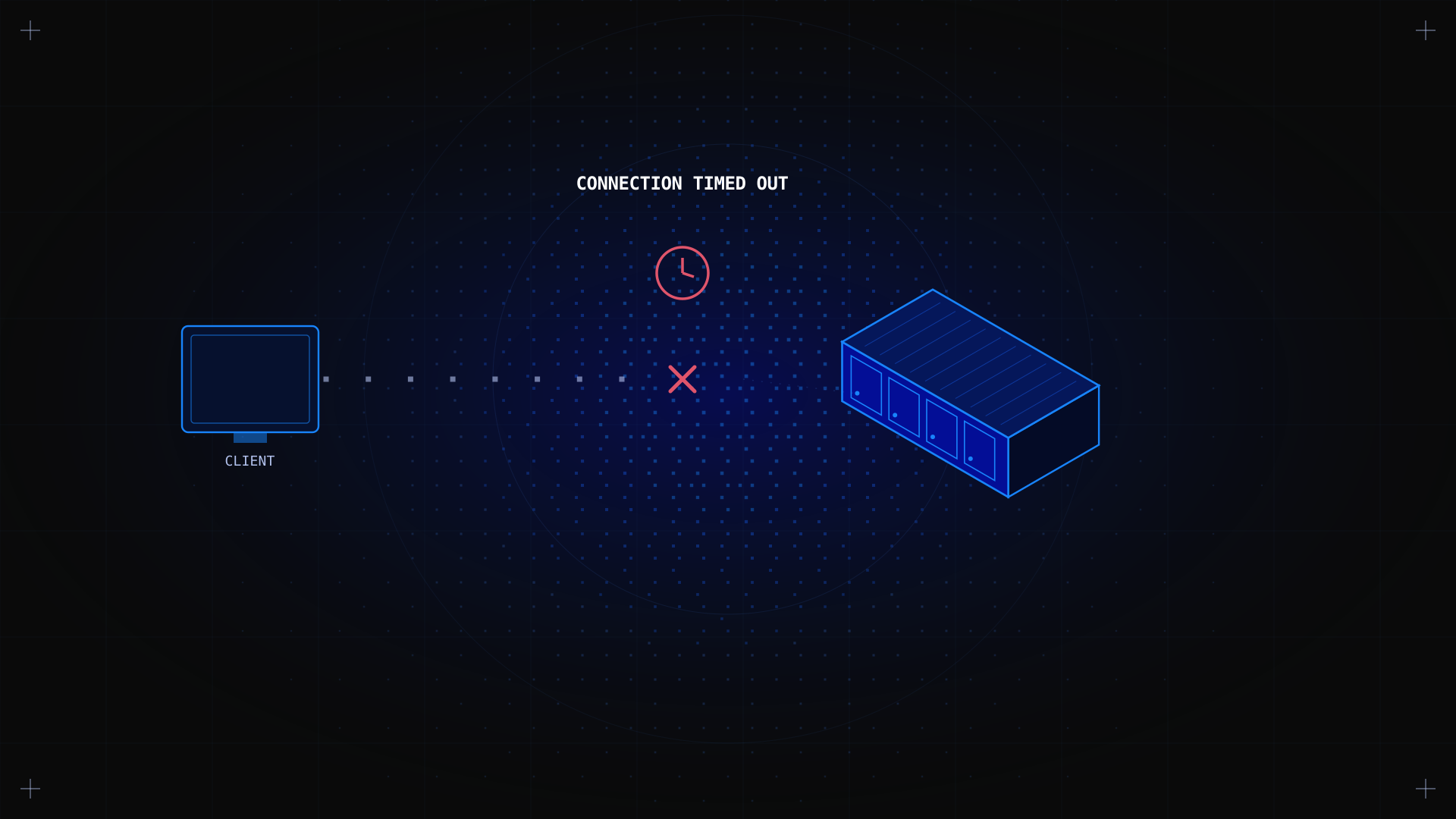
A dedicated server timeout occurs when a client attempts to connect to a server but receives no response within the expected time window, and the connection is dropped. Timeout errors are among the most common issues reported by server owners and players connecting to game servers, and they have a wide range of causes: firewall misconfiguration, network instability, overloaded server resources, or incorrect port settings. This guide explains what dedicated server timeouts are, why they happen, and how to fix them. If you have not set up your server yet, start with our Linux server configuration guide.
Key Takeaways
- A dedicated server timeout means the server did not respond to a connection request within the allowed time limit.
- The most common causes are: firewall blocking the port, incorrect port forwarding, server overload, or a misconfigured timeout value in the application.
- Most timeout issues are resolved by checking firewall rules, verifying open ports, and restarting the relevant service.
- For game servers (Ark, Palworld, 7 Days to Die), timeouts are almost always caused by firewall rules or router port forwarding blocking UDP traffic.
What Is a Dedicated Server Timeout?
A timeout is a built-in mechanism that terminates a connection attempt after a defined period with no response. When you see an error like "Connection timed out", "Timed out waiting for host", or "Connection timeout", it means:
- Your client sent a connection request (TCP SYN or UDP packet) to the server's IP and port.
- The server, or a firewall between you and the server, did not respond within the timeout window.
- The client gave up and reported a timeout error.
This is different from a "Connection refused" error, which means the server actively rejected the connection (port closed or service not running). A timeout typically points to a network-level block or an unresponsive server.
What Causes Dedicated Server Timeout Errors?
1. Firewall blocking the port
The most frequent cause. If the server's firewall (UFW, iptables, firewalld, or Windows Firewall) does not have a rule allowing incoming traffic on the required port, connection attempts will time out silently. The firewall drops packets without sending a rejection response.
2. Router / NAT port forwarding not configured
If your dedicated server is behind a router (for example in a home lab or self-hosted setup), you need to forward the game or application port from the router's public IP to the server's private IP. Missing or incorrect port forwarding rules are a common cause of timeout errors for game servers.
3. Server overload or unresponsive service
When a server is under heavy load, whether from high CPU usage, memory exhaustion, or a hung process, it may fail to respond to incoming connections in time, triggering a timeout on the client side. The service is running but too busy to accept new connections.
4. Wrong IP address or port
A simple but easy-to-miss configuration error: connecting to the wrong public IP address, or using the wrong port number. Always verify the server's current public IP (it may change after a reboot on DHCP) and confirm the application is listening on the expected port.
5. ISP or upstream network issue
Occasionally, packet loss or routing issues between your ISP and the server's data centre cause connection timeouts that are outside your control. These are typically transient and resolve within minutes.
How to Fix a Dedicated Server Connection Timeout: Step by Step
Step 1: Verify the server is reachable
From your local machine, ping the server's public IP to check basic network connectivity:
ping YOURSERVERIP
If ping replies, the server is reachable. If ping times out, the issue is at the network level (firewall blocking ICMP, or server is down). Use the Kimsufi KVM console to check if the server is running.
Step 2: Check which ports are open
On the server, verify which ports are actively listening:
sudo ss -tlnup

# or:

sudo netstat -tlnup
Confirm your application is listening on the correct port. If it is not listed, the service is not running: start it with sudo systemctl start your-service.
Step 3: Check firewall rules
On Ubuntu/Debian with UFW:
sudo ufw status verboseOn AlmaLinux/RHEL with firewalld:
sudo firewall-cmd --list-allIf the required port is not in the allowed list, add it. For example, to open UDP port 7777 (common for game servers):
sudo ufw allow 7777/udp    # UFW

sudo firewall-cmd --permanent --add-port=7777/udp && sudo firewall-cmd --reload    # firewalld
Step 4: Test port accessibility from outside
Use an online port checker (e.g., portchecker.co) or run from another machine:
nc -zv YOUR_SERVER_IP 7777If the port is still unreachable after opening the firewall, check whether your hosting provider has an additional network-level firewall. Kimsufi servers do not have one by default, but it is worth verifying in the control panel.
Step 5: Restart the service and check logs
If the port is open but connections still time out, restart the service and inspect the logs:
sudo systemctl restart your-service

sudo journalctl -u your-service -n 50
✅ Expected result After opening the correct port in your firewall and restarting the service, clients should be able to connect without timeout errors.
Troubleshooting: Common Timeout Errors and Fixes
| Symptom / Error | Likely Cause | Fix |
|---|---|---|
| Connection timed out (SSH) | Firewall blocking port 22, or wrong IP | Check ufw/firewalld rules. Use KVM console to re-add SSH rule: sudo ufw allow OpenSSH |
| Game server: timeout waiting for host | UDP port not open or port forwarding missing | Open the game's UDP port in firewall. If behind a router, configure port forwarding. |
| Palworld / Ark connection timeout | Default ports blocked (UDP 8211 / 7777) | Run: sudo ufw allow 8211/udp (Palworld) or sudo ufw allow 7777/udp (Ark). Restart the server. |
| HTTP/HTTPS timeout (web server) | Apache/Nginx not running, or port 80/443 blocked | Check service: sudo systemctl status apache2. Open ports: sudo ufw allow 80/tcp && sudo ufw allow 443/tcp |
| Database connection timeout | MySQL/PostgreSQL not accepting remote connections | Check bind-address in my.cnf or postgresql.conf. Open port 3306/5432 in firewall only for trusted IPs. |
How to Improve Server Connection Stability
- Keep services updated: outdated software can have bugs that cause connection drops or unresponsive states.
- Monitor server load: use htop or install Netdata for real-time monitoring. If CPU or RAM is consistently maxed out, consider upgrading your server plan.
- Configure application-level timeout values: for web applications, tune timeout settings in your web server config (e.g., the Timeout directive in Apache, proxyreadtimeout in Nginx) to match your application's response times.
- Enable connection keep-alives: this reduces the overhead of establishing new connections for each request, improving stability under load.
- Use DDoS protection: Kimsufi's built-in anti-DDoS protection filters volumetric attacks at the network edge, preventing your server from being overwhelmed by malicious traffic that would otherwise cause timeout errors for legitimate users.
FAQ
What is the difference between 'connection timed out' and 'connection refused'?
'Connection timed out' means no response was received, typically because a firewall silently dropped the packet. 'Connection refused' means the server actively sent a rejection: the port is closed or the service is not running on that port.
How do I fix timeout waiting for host on a game server?
The most common fix: open the game server's UDP port in your firewall. For Ark Survival Evolved, open UDP 7777. For Palworld, open UDP 8211. Use sudo ufw allow PORT/udp on Ubuntu/Debian, then restart the game server service.
Can my ISP cause dedicated server timeouts?
Yes, though it is not common. ISP-level routing issues or packet loss can cause transient timeouts. Run a traceroute to your server's IP (traceroute YOURSERVERIP) to identify where packets are being dropped. If the issue is consistent and beyond your server, contact your hosting provider.
How do I set timeout values on a dedicated server?
Timeout values are configured per application. For Apache: set the Timeout directive in httpd.conf or apache2.conf. For Nginx: adjust proxyconnecttimeout, proxysendtimeout, and proxyreadtimeout in your server block. For databases, check the connection timeout settings in your application's database configuration.
Conclusion
Dedicated server timeout errors are almost always caused by a firewall blocking a port, a misconfigured service, or a server under excessive load. Working through the five diagnostic steps in this guide, checking reachability, open ports, firewall rules, external port access, and service logs, resolves the vast majority of timeout issues within minutes. For broader server management, see our Linux dedicated server guide.
Need a reliable dedicated server? Kimsufi dedicated servers include built-in DDoS protection, full root access, and unmetered bandwidth, starting at $11.10/month.