




















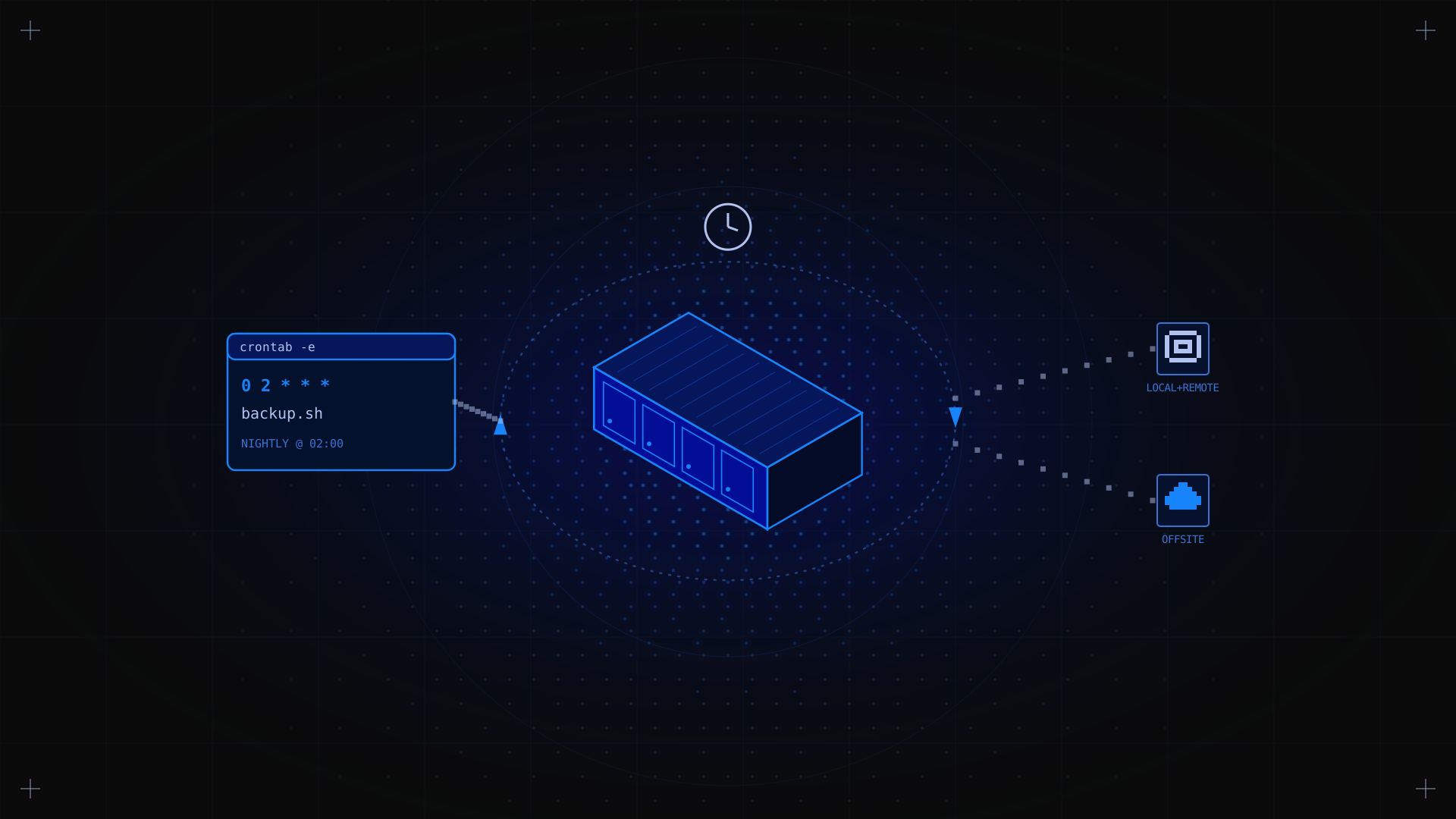
Data loss on a dedicated server can be catastrophic, whether caused by hardware failure, accidental deletion, a ransomware attack, or a failed software update. A reliable backup strategy is not optional; it is a fundamental part of server management. This guide covers how to backup a dedicated server, the best tools available, how to automate the process, and where to store your backup data securely.
Key Takeaways
- A complete backup strategy follows the 3-2-1 rule: 3 copies of your data, on 2 different media types, with 1 copy stored offsite.
- The four main backup types are: full, incremental, differential, and snapshot. Each has different storage and recovery time implications.
- Tools like rsync, Bacula, and BorgBackup offer reliable, scriptable backups for Linux dedicated servers.
- Automated backups via cron jobs ensure consistency without manual intervention.
- Backup data should be encrypted before transmission and stored in a separate location from the primary server.
Why Are Backups Critical for a Dedicated Server?
Unlike managed hosting services where backups are handled by the provider, a dedicated server is typically unmanaged: you are responsible for the operating system, software, and data protection. Without a backup strategy, a single disk failure, accidental rm -rf, or ransomware attack could result in permanent data loss. Three principles make backups non-negotiable:
- Business continuity: a backup allows you to restore a working environment quickly after a failure, minimising downtime.
- Data protection: backups are your safety net against corruption, accidental deletion, and malicious attacks.
- Disaster recovery: in a worst-case scenario (complete server failure, data centre incident), a recent offsite backup is the only way to recover.
💡 RPO and RTO Define your Recovery Point Objective (how much data loss is acceptable, e.g. 1 hour) and Recovery Time Objective (how quickly you need to be back online) before choosing your backup frequency and strategy.
What Are the 4 Types of Backup?
1. Full backup
A complete copy of all data. The safest option but the most storage-intensive and time-consuming. Suitable as a weekly baseline, combined with incremental or differential backups for daily runs.
2. Incremental backup
Backs up only the data that has changed since the last backup (full or incremental). Fast and storage-efficient. Recovery requires the full backup plus all incrementals in sequence.
3. Differential backup
Backs up all data changed since the last full backup. Faster recovery than incremental (you only need the full backup plus the latest differential), but uses more storage than incremental over time.
4. Snapshot
A point-in-time image of the entire disk or volume. Common for virtual machines and cloud environments. On dedicated servers, LVM (Logical Volume Manager) snapshots or filesystem-level snapshots (ZFS, Btrfs) provide this capability. Fast to create, with minimal performance impact.
What Tools Are Available for Server Backups?
rsync: simple, fast, and scriptable
rsync is the standard tool for Linux server backups. It synchronises files between locations efficiently, transferring only changed data. It works over SSH for remote backups and integrates easily into cron jobs.

rsync -avz --delete /var/www/ user@backup-server:/backups/www/
BorgBackup: deduplication and encryption
BorgBackup provides deduplicating, compressed, and encrypted backups. It is ideal for servers with large data volumes where storage efficiency matters. Repositories can be stored locally, on a remote server, or in object storage.
borg create --stats --progress backup-repo::$(date +%Y%m%d) /etc /var/www /home
Bacula: enterprise backup management
Bacula is a full-featured, open-source backup solution with a client-server architecture. It supports scheduled backups, multiple storage destinations, and detailed reporting. Best suited for managing backups across multiple servers.
cPanel / control panel backups
If your dedicated server runs a control panel such as cPanel or Plesk, built-in backup tools allow you to schedule full account backups (files, databases, emails) without command-line access. Backups can be stored locally or transferred to remote storage automatically.
How to Automate Backups on a Dedicated Server
Manual backups are unreliable: they depend on human action and are easily forgotten. Automating backups with cron jobs ensures consistent, scheduled protection without ongoing effort.
Step 1: Write your backup script
Create a shell script that performs the backup. Here is a simple example backing up /var/www and /etc to a remote server:
#!/bin/bash

DATE=$(date +%Y%m%d_%H%M)

rsync -avz --delete /var/www/ backup-user@BACKUP_SERVER:/backups/www/

rsync -avz /etc/ backup-user@BACKUP_SERVER:/backups/etc/

echo "Backup completed: $DATE" >> /var/log/backup.log
Step 2: Make the script executable
chmod +x /usr/local/bin/backup.shStep 3: Schedule with cron
Open the crontab editor and add your backup schedule:
crontab -e

# Add: run backup every day at 2am

0 2 * * * /usr/local/bin/backup.sh
✅ Expected result Your backup runs automatically every night at 2am. Check /var/log/backup.log to verify completion and monitor for errors.
What Are the Options for Backup Storage?
Local storage (same server)
The simplest option: store backups on a second disk in the same server. Fast to write and restore, but provides no protection against server-level failures (hardware failure, theft, fire). Suitable only as a first tier alongside remote backups.
Remote dedicated backup server
A second dedicated server used exclusively for backups provides physical separation from the primary server. Kimsufi's KS range with large HDD capacity is a cost-effective option for a dedicated backup server, starting at $11.10/month.
Cloud / object storage
Services like OVHcloud Object Storage (S3-compatible) allow you to push backups to geographically distributed storage. Tools like rclone or s3cmd make it easy to automate transfers. Cloud storage provides geographic redundancy at low cost.
Hybrid approach (recommended)
The 3-2-1 rule in practice: keep one local copy (fast recovery), one on a remote dedicated server (reliable offsite), and one in cloud object storage (geographic redundancy). This combination covers the full range of failure scenarios and is the approach most experienced sysadmins rely on.
How to Secure Backup Data
Before diving into the checklist below, it is worth reading our guide on how to secure a dedicated server: many of the same principles apply directly to your backup infrastructure.
- Encrypt backups in transit: always use SSH or TLS when transferring backup data to remote locations. Never send unencrypted data over a public network.
- Encrypt backups at rest: use BorgBackup's built-in encryption, or encrypt archives with GPG before storage. Encryption protects backup data if the storage medium is compromised.
- Use dedicated backup credentials: create a separate user account with limited permissions specifically for backup operations. Never use the root account for automated backup scripts.
- Test your restores regularly: a backup you have never tested is not a backup. Schedule periodic restore tests to verify that your data is complete and recoverable.
- Monitor backup completion: set up log monitoring or email alerts to notify you if a scheduled backup fails. Silent failures are one of the most common causes of data loss.
Troubleshooting Common Backup Issues
| Symptom | Cause | Fix |
|---|---|---|
| rsync: permission denied | Script running as wrong user | Run with sudo or as root. Use SSH key auth for remote transfers. |
| Backup fills disk | No retention policy | Add --max-delete to rsync, or use borg prune to limit old backup retention. |
| cron job not running | Wrong syntax or missing PATH | Test with: crontab -l. Add PATH=/usr/bin:/bin at top of crontab. |
| Restore takes too long | Too many incrementals chained | Switch to weekly full + daily differential strategy. |
FAQ
How much does a backup server cost?
A dedicated Kimsufi server used as a backup target starts at $11.10/month for the KS range, with large-capacity HDD configurations available in the SYS range from $33.20/month. Cloud object storage is typically billed per GB stored and per GB transferred, often less than $0.02/GB/month. You can explore all options on the Kimsufi dedicated servers page.
Is 10TB enough for a media server backup?
For most media server use cases (personal video libraries, photos, music), 10TB provides substantial capacity. If you are storing 4K video content or running a production media platform, factor in growth and plan for 2 to 3 times your current usage.
What are the best practices for dedicated server backups?
Follow the 3-2-1 rule (3 copies, 2 media types, 1 offsite), automate with cron, encrypt all backup data, test restores regularly, and monitor backup job completion. For the full picture on server setup, our guide on how to configure a Linux server is a good starting point before implementing your backup strategy.
Conclusion
Backing up a dedicated server is not a one-time task: it is an ongoing operational practice. Implement automated daily backups with rsync or BorgBackup, follow the 3-2-1 rule for storage, encrypt all backup data, and test your restore process regularly. The time invested in a solid backup strategy pays for itself the first time something goes wrong. Ready to get set up? Kimsufi dedicated servers from $11.10/month include full root access and unmetered bandwidth, making them a reliable choice as both a primary server and a dedicated backup target.