




















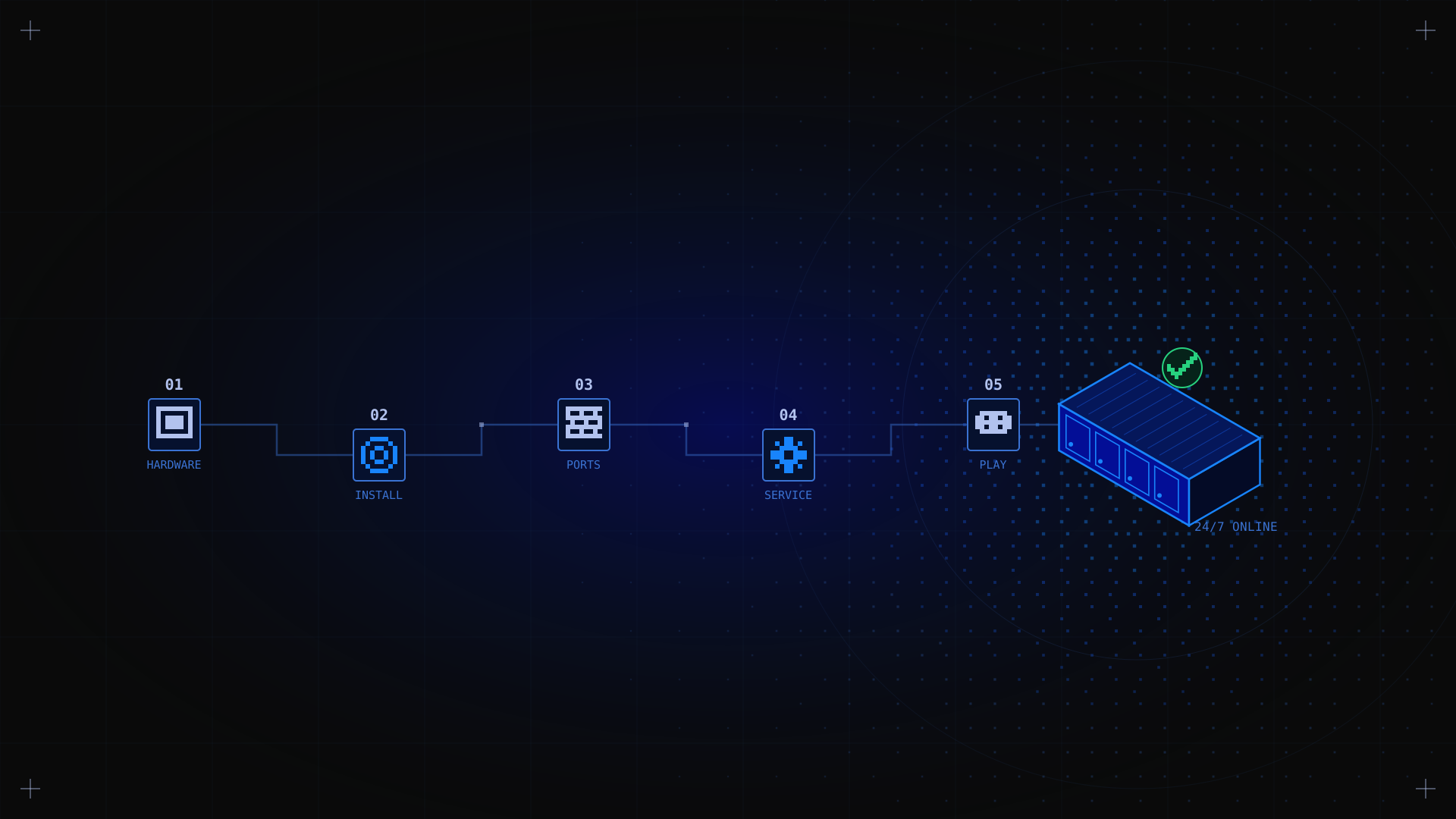
A dedicated game server runs your multiplayer game 24/7 in a data center, independent of any player's machine. Multiplayer games use a client-server architecture: the dedicated server runs the world, while each player's machine acts as a client. Unlike a 'listen server' (where one player hosts from their PC), a dedicated server provides a stable, low-latency gaming experience for everyone, stays online even when the host is not playing, and can be customized with mods and settings. The setup process is simpler than it looks: this guide covers everything you need, from hardware selection and software installation to firewall configuration and performance management. For a broader overview of game server hosting options, visit our use case page.
Key Takeaways
- A dedicated game server requires a physical or virtual server with sufficient CPU, RAM, and storage for your game and player count. Dedicated hardware outperforms shared or home-hosted setups.
- Most game servers are installed via SteamCMD (for Steam-based games) or direct download from the game developer.
- Firewall configuration is critical: open the game's required UDP/TCP ports or players cannot connect.
- Running the game server as a systemd service ensures it restarts automatically after crashes or reboots.
- Kimsufi KS servers starting at $11.10/month are a cost-effective choice for entry-level game servers. SYS servers from $33.20/month handle larger player bases with NVMe SSD storage.
What Are the Advantages of a Dedicated Game Server?
Compared with hosting at home or renting game slots, a dedicated gaming server brings clear benefits:
- Always online: the server runs 24/7 in a data center. Players can connect any time, from any device, not just when the host is playing.
- Consistent low latency: a server in a professional data center environment delivers lower, more stable ping than a home-hosted server, especially for players in different locations.
- More players: dedicated hardware handles significantly more concurrent players than a listen server running on a gaming PC.
- Full customization: install mods, configure game settings, manage player permissions, and run admin commands with complete control.
- No impact on gaming performance: the server runs separately from players' machines. The host does not experience frame drops from running the server.
What Hardware Is Needed for a Gaming Server?
Gaming server hardware requirements vary significantly by game type and player count. Most game code runs on only a few threads, so a modern Intel or AMD Ryzen core processor with a high clock speed matters more than core count: a quad-core CPU at 3.5 GHz beats a 16-core CPU at 2.0 GHz for most titles. You do not need a video card: dedicated game servers run headless and rely on the CPU, memory, and storage. Choose a solid state drive (SSD or NVMe) for world data, and a data center with redundant power supply and network systems. Most game servers run on Linux operating systems, with some also supporting Windows. The table below gives baseline specs for common games. Always check the game developer's official dedicated server documentation for the most current requirements.
| Game | Min CPU | Min RAM | Storage | Ports (UDP) |
|---|---|---|---|---|
| Minecraft (Java, 20 players) | Quad-core 3.0+ GHz | 8 GB | SSD 20 GB+ | 25565/TCP |
| Ark Survival Evolved (30 players) | 6-core 3.5+ GHz | 16 GB | SSD 60 GB+ | 7777, 27015 |
| Palworld (16 players) | Quad-core 3.5+ GHz | 16 GB | SSD 40 GB+ | 8211 |
| Rust (100 players) | 8-core 3.5+ GHz | 32 GB | NVMe 60 GB+ | 28015, 28016 |
| 7 Days to Die (8 players) | Quad-core 3.0+ GHz | 8 GB | SSD 20 GB+ | 26900-26902 |
Kimsufi KS servers (from $11.10/month) are well suited for Minecraft, 7 Days to Die, and smaller Palworld or Ark servers. For Rust or high-player Ark instances, a SYS server (from $33.20/month) provides the NVMe SSD and additional RAM needed for smooth performance.
Step-by-Step: How to Set Up a Dedicated Game Server
Step 1: Provision and connect to your server
Sign in to your Kimsufi account and order a server. You will receive an email with access details once the server is ready; connect via SSH with full root access and admin rights. If you are new to Linux server setup, read our Linux server configuration guide to learn the initial setup: creating a user, configuring SSH keys, setting up the firewall, and applying the essential security measures that keep your server secure.
ssh root@YOUR_SERVER_IPStep 2: Update the system
sudo apt update && sudo apt upgrade -y # Ubuntu/DebianStep 3: Install SteamCMD (for Steam-based games)
Most popular dedicated game servers (Ark, Rust, Palworld, 7 Days to Die) are installed and updated via SteamCMD, the command-line version of the Steam client.
sudo add-apt-repository multiverse

sudo dpkg --add-architecture i386

sudo apt update

sudo apt install steamcmd -y
Step 4: Install the game server
Use SteamCMD to download the game server software. Here is the example for Ark Survival Evolved:
steamcmd +login anonymous +force_install_dir /home/steam/ark \\\\+app_update 376030 +quit
To create a Minecraft server, download the server JAR directly from the official Minecraft website and run it with Java. Game developers each document their own installation process: follow their dedicated server instructions for the exact steps.
Step 5: Configure the game server
Edit the game's configuration file to set the server name, player limits, password, map, and other settings for full customization. Configuration file locations vary by game: for Ark, the main files are GameUserSettings.ini and Game.ini in the Config directory. For Minecraft, server.properties in the server folder.
Step 6: Open firewall ports
This essential step is the most commonly missed. Players cannot connect until the correct ports are open in your firewall; keep everything else closed for network security. Use the port table above for your specific game:
# Minecraft

sudo ufw allow 25565/tcp

# Ark Survival Evolved

sudo ufw allow 7777/udp && sudo ufw allow 27015/udp

# Palworld

sudo ufw allow 8211/udp
Step 7: Create a systemd service
Running the game server as a systemd service ensures it launches automatically on boot and restarts after crashes, which simplifies day-to-day server management. Create a service file:
sudo nano /etc/systemd/system/gameserver.serviceAdd the following content (adjust paths and the ExecStart command for your game):
[Unit]

Description=Game Server

After=network.target

[Service]

User=steam

WorkingDirectory=/home/steam/ark

ExecStart=/home/steam/ark/ShooterGameServer TheIsland?listen

Restart=on-failure

[Install]

WantedBy=multi-user.target

sudo systemctl enable gameserver

sudo systemctl start gameserver

sudo systemctl status gameserver
✅ Expected result The game server is running and visible in the in-game server browser. Players can connect using your server's public IP and the game's default port.
How to Ensure Good Performance for Game Servers
Follow these practices to ensure optimal performance and a smooth gaming experience for your players:
- Monitor server performance: use performance monitoring tools like htop to track CPU and RAM resource usage and spot performance issues early. If your server is consistently above 80% CPU, consider upgrading to a higher-tier plan with more cores or faster clock speed.
- Keep the server software updated: game server updates often include bug fixes and performance improvements. Check for updates regularly via SteamCMD.
- Use NVMe SSD storage: games with large world files (Ark, Rust) benefit significantly from NVMe SSD read/write speeds: world load times and save operations are much faster than on SATA SSD or HDD.
- Restart regularly: some game servers benefit from a scheduled daily restart to clear memory leaks and apply updates. Use a cron job to automate this.
- DDoS protection: gaming servers are frequent targets for DDoS attacks. All Kimsufi servers include OVHcloud's built-in DDoS protection at no extra cost, keeping your players connected and protected from connection disruption.
FAQ
Can you build your own gaming server?
Yes. You can host a game server on your own hardware at home. The practical limitations are: residential ISPs often throttle server traffic or block server ports, you need to configure port forwarding on your router and set up dynamic DNS to cope with a changing IP address, and your internet connection's upload speed is limited (typically 20 to 100 Mbps). Home networks are also less reliable than a professional data center. For a small group of friends on the same ISP, a home server works fine. For a public server with players connecting from different locations, dedicated server hosting delivers a much better experience. See our budget dedicated servers guide for entry-level options.
How much RAM do I need for a dedicated game server?
It depends on the game. Minecraft with 20 players runs comfortably on 8 GB. Ark Survival Evolved with 30 players needs at least 16 GB. Rust with 100 players requires 32 GB. Always check the game developer's server requirements and add a buffer: running a server at 90% RAM causes lag.
How do I manage a dedicated game server?
Use the systemd service status command to check whether the server is running. Review logs with journalctl -u gameserver -f for real-time output and troubleshooting. Use the game's admin console, RCON (if supported), or a companion app for in-game commands. Schedule automatic restarts and regular backups of your world saves with cron. You can also point a domain name at your server's IP with a DNS A record so players do not have to remember the address, and run multiple game servers on one machine if resources allow.
Should I choose a VPS or a dedicated server for game hosting?
A VPS (virtual private server) can run a small game server for a handful of players, and VPS hosting is cheap to start with. But VPS game performance is limited because physical resources are shared with other tenants, and games are sensitive to CPU contention. A dedicated server gives you the full hardware, better privacy, and stable tick rates. Public cloud instances offer flexibility for short-lived or bursty needs, but for a persistent multiplayer world, bare metal is the most cost-effective solution.
Do I need a control panel to manage my game server?
No, but it helps. Third-party tools like Pterodactyl, a free open-source platform with an active community providing support and documentation, give you a web control panel for server management: start/stop buttons, file editing, scheduled tasks, and user access management across multiple servers. If you would rather not administer anything yourself, some game server hosting providers sell managed dedicated or managed bare metal plans, at a higher price than an unmanaged Kimsufi server.
Conclusion
Setting up a dedicated game server takes a few hours but pays off immediately in stability, performance, and control. The key steps are: choose the right hardware for your game and player count, install via SteamCMD or direct download, configure your settings and open the firewall ports, and run the server as a systemd service so it stays online and players can jump in and play at any time.
Host your game server today Browse Kimsufi KS and SYS ranges from $11.10/month. Or see all game server configurations on our game server hosting page. Questions about sizing your server? Contact our sales team for advice.