
























Dedicated server errors show up in many forms, from a machine that will not boot to a service that quietly stops responding. Whether you host a website, a database, or a game server, an unexplained fault can turn into hours of guesswork if you do not know where to start. This guide covers the most common errors, explains why they happen, and gives you a clear troubleshooting sequence so you can get back online with confidence. For a related walk-through of one of the most frequent error patterns, see our guide on common dedicated server errors explained.
Key takeaways
- Most issues trace back to one of four sources: a physical component, the network, software configuration, or storage.
- Server logs are your first stop for diagnosis; they usually name the failing service directly.
- A structured sequence, physical checks first, then network, then software, saves far more time than guessing.
- An outage is rarely permanent; a reboot, a config fix, or a support ticket resolves most cases.
- Routine maintenance and active monitoring prevent far more problems than reactive fixes ever will.
What are dedicated server errors?
A dedicated server error is any fault that stops your physical machine, or a service running on it, from behaving as expected. On shared hosting, the provider handles part of the stack for you. Here, you manage the full stack yourself, so a fault can originate anywhere from a physical component to a single misconfigured application. Common examples include a machine that refuses to boot, a website returning a server-side fault, an SSH connection that times out, or a process that crashes and restarts on a loop. Our guide to common dedicated server errors explained walks through each case in more detail.
What the errors actually look like
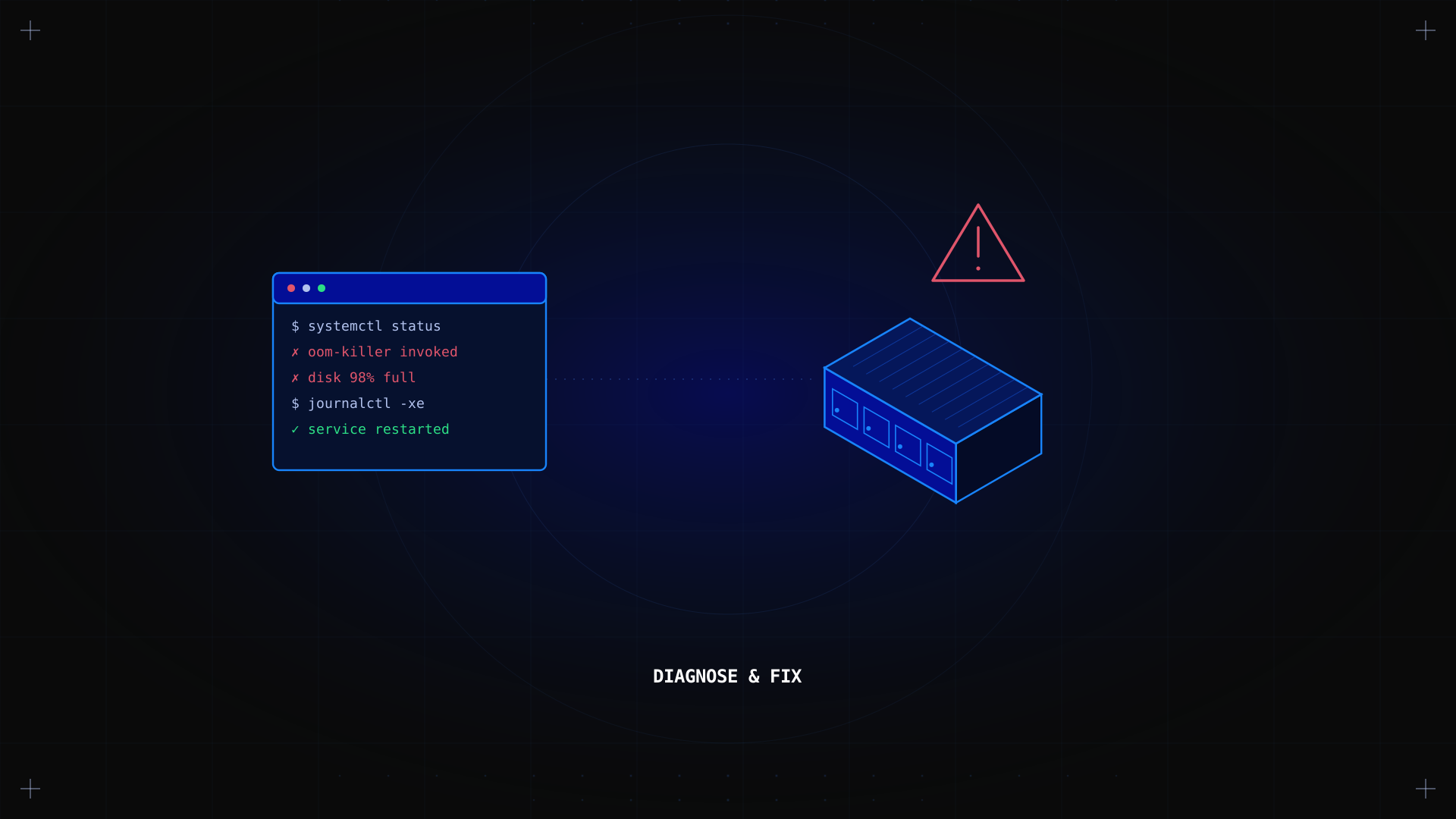
A description only gets you so far. Here is what these faults actually look like in a terminal or a log file:
ssh: connect to host 51.15.23.45 port 22: Connection timed out
nginx.service - Active: failed (Result: exit-code)
bash: /var/log/syslog: No space left on device
Once you recognize the pattern, matching it to a cause takes seconds instead of a search engine detour.
Diagnostic commands and what to look for
Run these directly on the server to confirm what is actually happening before you change anything:
| Command | What it tells you |
|---|---|
| df -h / | Disk usage on the root partition. Use% above 90% signals a storage error. |
| free -m | Memory in use versus available. Available should stay above 10% of total. |
| journalctl -p 3 -xb | Errors logged since the current boot, filtered to priority 3 and above. |
| nc -zv <IP> 22 | Tests whether a specific port is reachable; useful for connection and firewall errors. |
| htop | Live view of CPU, RAM, and running processes. |
| iotop | Shows which process is driving disk I/O when a server feels slow. |
| mtr <IP> | Traces a connection hop by hop and flags where packet loss starts. |
| systemctl status nginx | Shows whether a service is active, failed, or stuck restarting, with recent log lines attached. |
Case studies from real dedicated servers
A Minecraft host saw "Connection refused" from every player, despite the game process running fine. The cause was a local firewall rule blocking the game port. The fix: sudo iptables -A INPUT -p tcp --dport 25565 -j ACCEPT, then saving the rule so it survives a reboot.
A WordPress site went down with bash: /var/log/syslog: No space left on device. du -sh /var/log/* showed months of unrotated logs filling the root partition. The fix was a logrotate configuration plus a one-time cleanup.
A database server slowed to a crawl, then lost mysqld entirely. dmesg showed an "Out of memory: Killed process" entry. The query load had outgrown the RAM tier; the fix was adding swap as a buffer and moving up to a plan with more RAM.
Symptom-based diagnostic table
| Symptom | First check | Likely cause |
|---|---|---|
| Server unreachable over SSH | nc -zv <IP> 22 | Firewall rule, network outage, or service down |
| Website returns a 500 error | journalctl -p 3 -xb | Application or configuration error |
| Server feels slow under load | htop, then iotop | CPU-bound process or disk I/O bottleneck |
| Service keeps restarting | systemctl status <service> | Misconfiguration or missing dependency |
| Disk errors or corruption warnings | df -h /, dmesg | Storage failure or full partition |
| Players cannot connect to a game server | nc -zv <IP> <port> | Firewall or port forwarding rule |
Common causes and types of server issues
Hardware and boot errors
A failing component, a bad RAM module, or a power failure can take a machine offline without warning, and the fault usually surfaces first at startup. Symptoms include random reboots, kernel panics during boot, or the server stopping at POST. Our server maintenance checklist covers the routine work that catches most of these early.
Network and connection errors
A misconfigured firewall, a dropped route, or a bad switch port can make a healthy machine unreachable, cause packet loss, or block a specific port entirely. The machine runs fine, but nothing outside can reach it. Our port forwarding guide covers this in depth.
Software and application errors
An update, an expired security certificate, an access policy change, or a service that never restarts automatically can each trigger a service failure that looks unrelated to its real cause. A routine package upgrade that overwrites a config file, or a TLS certificate that expired overnight, are two classic examples.
Storage errors
Disk space runs low, a file system reports corruption, or read and write speeds drop sharply, sometimes leading to data loss. The first sign is often a "No space left on device" error in the logs, even when the system "feels" fine. A full /var partition can silently break logging, package installs, and databases that write to disk.
Who runs into these issues
Developers and SysAdmins often hit configuration errors during their first server setup, before monitoring is in place. Game server hosts deal with connection problems most often, since one dropped port can block every player at once. Small businesses and agencies usually notice problems first through an outage or slow page loads, well before they look at the logs.
Dedicated server versus VPS troubleshooting
Full root access and complete isolation make a fault easier to trace on a dedicated server, since you are not sharing resources with other tenants. A VPS shares the same physical machine, so a neighbor's heavy load can look like your own fault even when your configuration is correct. Diagnosing an issue takes more log files, but the result is a clearer, more reliable root cause. For a deeper comparison, see our guide on dedicated server vs VPS.
How to troubleshoot server errors step by step
- Look at the server logs first. Most faults, from a failed service to a rejected connection, leave a clear entry in the log.
- Verify network connectivity. Confirm the machine responds to a ping, then review firewall settings before assuming a hardware failure. See our connection timeout solutions guide if the connection itself is the problem.
- Check disk space, RAM levels, and component status. A near-full disk causes symptoms that look like software problems at first glance.
- Restart the affected service with a command such as
sudo systemctl restart, or reboot the machine if the fault affects the whole system. - Review your security configuration. An outdated certificate or an overly strict firewall rule can mimic a connection problem. Our dedicated server security tips guide covers the essentials.
- Contact your hosting provider's support team if the fault persists; a fresh set of eyes often catches what a log file alone cannot show.
Frequently asked questions
What are the most common dedicated server errors?
A failed boot, a connection failure, an application crash, or a storage issue. Logs usually identify which category applies.
How do I troubleshoot dedicated server issues?
Start with the logs, then check network connectivity, then review component status, in that order.
What causes dedicated server downtime?
A hardware fault, an unplanned reboot, network issues, a server overload, or a service that crashed without restarting.
How do I fix dedicated server error messages?
Search the exact wording in your service logs, then review the configuration file it references; most error messages point directly to the cause.
How do I resolve connection issues on dedicated servers?
Confirm the machine is reachable, review firewall rules and open ports, and verify the network configuration on both ends.
What tools help with monitoring a dedicated server?
htop and iotop for a live, on-server view; mtr for network path issues; and Netdata, Prometheus with Grafana, or Uptime Kuma for ongoing monitoring and alerting before problems become an outage.
Next steps
These errors follow a pattern you can learn to recognize quickly: hardware, network, software, or storage. Work through the checks in order, protect your data with regular backups, and treat monitoring as prevention rather than an afterthought. Explore the Kimsufi range of dedicated servers to find a machine built for reliability from the start.