























RAID combines multiple disks into one logical volume to gain speed, survive a disk failure, or both. The RAID level you pick decides how much usable capacity you keep, how many drives can die before you lose data, and how long a rebuild takes. This guide covers RAID 0, RAID 1, RAID 4, RAID 5, RAID 6 and RAID 10 with the trade-offs that matter.
Key takeaways
- RAID 0 stripes for speed with no redundancy. One disk failure destroys the whole RAID array.
- RAID 1 writes every block twice, to two drives. You keep half the raw capacity and survive a single disk failure.
- RAID 5 gives n−1 usable capacity and tolerates a single drive failure. RAID 6 gives n−2 and tolerates two.
- RAID 10 is the simple choice for databases: mirror pairs striped together, fast rebuild, half the capacity.
- RAID is not a backup. It protects against hardware failure, not deletion, corruption or ransomware.
What is RAID and how does it work?
RAID stands for Redundant Array of Independent Disks. The operating system sees one volume; underneath, the RAID layer spreads data across multiple disks using three techniques. Every RAID level in this guide is built from some mix of them.
Striping splits data into blocks and writes them across every drive in turn. Reads and writes hit multiple spindles at once, so throughput scales with the number of disks. Striping alone adds no protection.
Mirroring writes identical data blocks to two or more drives. Capacity halves, but any single disk can fail without data loss, and reads can be served from either copy.
Parity stores a calculated block that can reconstruct any one missing block. It buys redundancy for the cost of one drive rather than half the array, at the price of extra work on every write.
Every RAID configuration is some combination of those three. The rest is arithmetic: how much space you keep, how many drive failures you tolerate, and how hard the rebuild hits performance.
Two implementation choices sit alongside the level itself. A hardware RAID controller carries its own processor and cache memory, so parity operations never touch the host CPU. Software RAID runs the same logic in the operating system. Both produce identical RAID levels; they differ in where the work happens and how portable the disk array is between machines.
One more distinction is worth fixing early. RAID protects the operation of a running system against a dead disk. It is not a copy of your data, and no RAID level changes that.
RAID 0: striping for speed
RAID 0 stripes data across two or more disks with no redundancy at all. Capacity is the sum of every drive, and both read and write throughput scale close to linearly because each operation spreads over multiple spindles.
The catch is severe. RAID 0 has no parity and no redundancy, so a single disk failure loses the entire RAID array. Worse, the risk rises with disk count: four drives in RAID 0 means four chances of total loss, not one. Reliability is the price of that speed, and RAID 0 pays all of it.
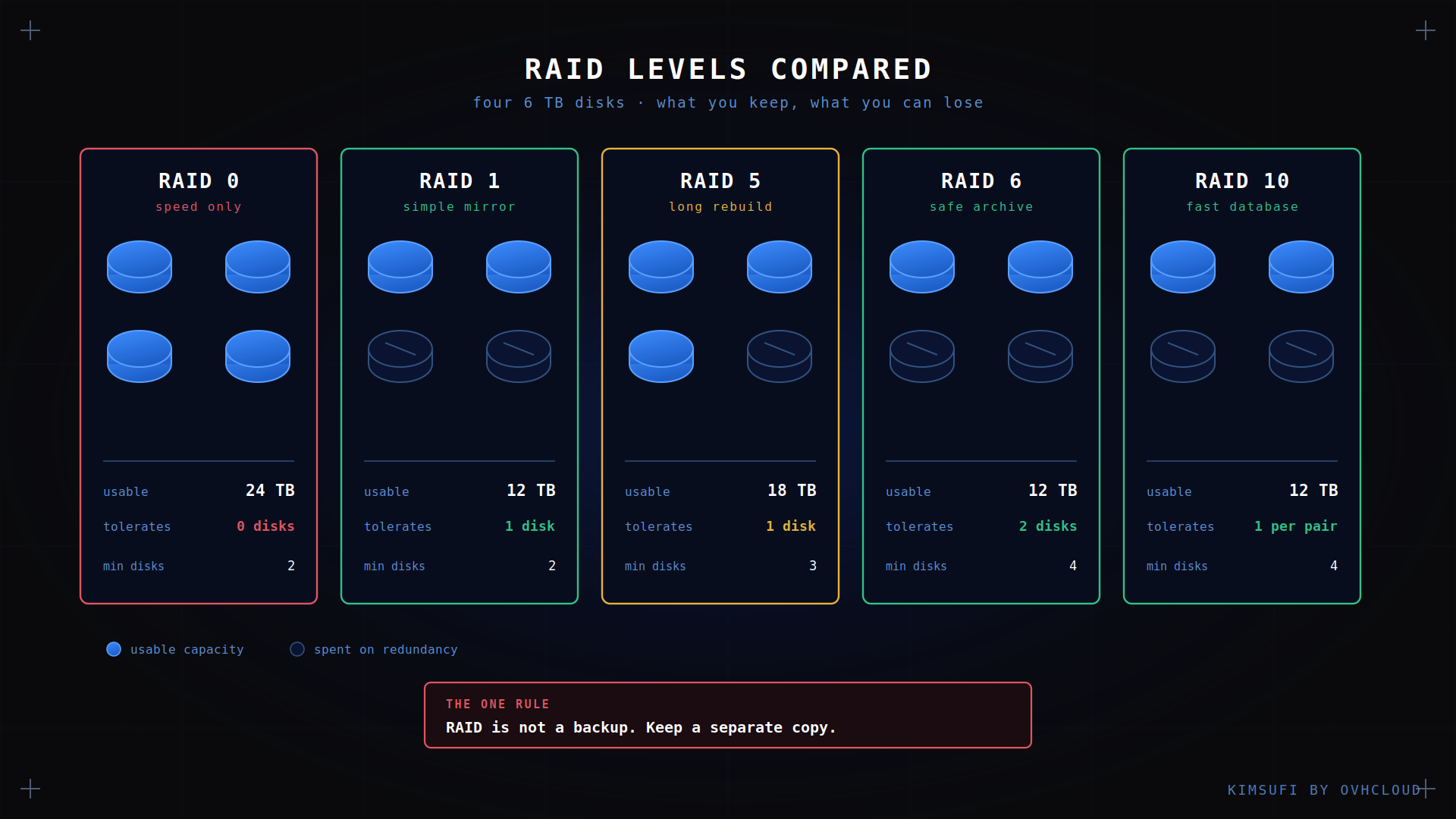
Use RAID 0 for scratch space, video transcoding, or a cache you can rebuild from source. Never use RAID 0 for anything you cannot recreate. A typical RAID 0 array of four 6 TB disks gives 24 TB usable and zero protection.
RAID 1: mirroring for redundancy
RAID 1 duplicates every block onto a second drive. With two 6 TB disks, RAID 1 gives 6 TB usable, a 50% capacity ratio, and the array survives a single drive failure.
Reads improve under RAID 1 because either disk can answer. Writes do not, since both drives must acknowledge. Rebuild is the simplest of any RAID level: copy one disk to its replacement, with no parity to recalculate, so reliability during recovery is high and the repair finishes quickly.
RAID 1 is the default on most two-drive machines, and a reasonable one. The RAID 1 setup is simple, predictable, and its failure mode is easy to reason about: one disk dies, the other keeps serving. The limitation is capacity, since half of every disk you buy holds a duplicate.
RAID 4: dedicated parity
RAID 4 stripes data across multiple disks and stores all parity on one dedicated disk. Three drives minimum, with n−1 capacity available.
The RAID 4 design has a structural flaw. Every write operation updates the parity disk, so that single drive becomes a bottleneck and wears faster than the rest of the array. RAID 5 solved this by distributing parity across all disks, which is why RAID 4 is now rare outside a few NAS platforms that pair it with SSD caching.
Understand RAID 4 as the step that made RAID 5 obvious, rather than a RAID level you would deploy today.
RAID 5: balanced performance and fault tolerance
RAID 5 distributes parity across all disks instead of isolating it. Minimum three drives, usable capacity of n−1, and a RAID 5 array tolerates one disk failure.
With four 6 TB drives, RAID 5 keeps 18 TB and can lose any one disk. Read performance is strong because data and parity both spread across every spindle. Writes carry a penalty: changing one block means reading the old block and its parity, then writing both back, so RAID 5 is measurably slower than RAID 10 on random writes.
The real limitation of RAID 5 is rebuild. When a drive fails, every remaining disk must be read in full to reconstruct the missing data, which takes hours on large HDDs and stresses drives of the same age and batch. A second disk failure during that window loses everything. That is why RAID 5 on large modern disks is increasingly discouraged, and why RAID 6 exists.
RAID 6: double parity for extra safety
RAID 6 adds a second parity block, so a RAID 6 array survives two simultaneous drive failures. Minimum four disks, usable capacity of n−2.
That second parity block is exactly the insurance RAID 5 lacks during a rebuild. With six 6 TB drives, RAID 6 keeps 24 TB and tolerates two disk failures, which matters when a rebuild runs for a day and the remaining disks share an age and a model number. Reliability improves measurably at the cost of one more drive.
The cost of RAID 6 is write performance. Every write computes two parity blocks, and a RAID 6 rebuild is slower because the repair is more complex. For large archive and backup arrays that trade is usually worth it, and RAID 6 is the standard choice above roughly six multi-terabyte disks.
RAID 10 (1+0): combining speed and redundancy
RAID 10 pairs drives as mirrors, then stripes across those mirror pairs. Four disks minimum, half the raw capacity available.
RAID 10 is the fastest redundant layout. There is no parity calculation, so RAID 10 writes avoid the RAID 5 and RAID 6 penalty entirely, and reads benefit from both striping and duplicate copies. Rebuild is a straight copy inside one mirror pair, so the repair finishes fast and puts little load on the rest of the disk array.
A RAID 10 array tolerates one failure per mirror pair, so it survives multiple drive failures when they land in different pairs, and loses everything if both halves of one pair die. For a busy database RAID 10 is the standard answer, and it pairs naturally with a dedicated database server.
Choosing the right RAID level for your needs
| Level | Min disks | Usable | Tolerates | Read | Write | Best for |
|---|---|---|---|---|---|---|
| RAID 0 | 2 | 100% | 0 | Excellent | Excellent | Scratch, cache |
| RAID 1 | 2 | 50% | 1 drive | Good | Baseline | Boot, small servers |
| RAID 4 | 3 | n−1 | 1 drive | Good | Poor | Legacy, rare |
| RAID 5 | 3 | n−1 | 1 drive | Good | Moderate | General storage |
| RAID 6 | 4 | n−2 | 2 drives | Good | Slower | Archive, large HDDs |
| RAID 10 | 4 | 50% | 1 per pair | Excellent | Very good | Databases, VMs |
Three questions settle which RAID level you set. How much can you lose if a rebuild fails: if the answer is nothing, choose RAID 6 or RAID 10. How write-heavy is the workload: parity levels punish random writes, so databases want RAID 10 and archives tolerate RAID 6. And what capacity ratio can you afford, since a full second copy costs half your disks while parity costs one or two.
Compare the total cost honestly. Four 6 TB disks give 24 TB under RAID 0, 18 TB under RAID 5, 12 TB under RAID 6 or RAID 10. The capacity you give up is what buys the reliability.
Implementation considerations and support
Software RAID and hard controller RAID solve the same problem differently. A hardware RAID controller carries its own processor and cache, keeping parity operations off the CPU. Software RAID, typically Linux mdadm, runs the same RAID logic on the host processor and needs no separate card. With software RAID, every block and its parity pass through system memory, so error-correcting ECC memory keeps a flipped bit from reaching the disks as valid data.
On Kimsufi machines the answer is straightforward: the ranges ship with Soft RAID, configured at install. The storage range pairs four 6 TB SATA disks with an NVMe drive, while the larger storage tier offers NVMe and HDD combinations. Modern processors handle parity easily, so software RAID performance sits close to a hardware controller for most workloads, and software RAID has one real advantage: the disk array stays portable between machines, because no proprietary card owns the RAID configuration metadata.
Four practical points for any RAID setup. Set the RAID level at install rather than converting a live array later, since conversion is slow and risky. Check array status regularly, because a degraded array is silent until the second disk failure arrives. Keep a spare disk of the same size available, so a rebuild starts the day a drive dies rather than the day a replacement ships. And ensure you know your rebuild window before you need it, since a single 6 TB disk typically takes most of a day to reconstruct.
You can inspect a software RAID setup at any time. On Linux, cat /proc/mdstat reports every array, its RAID level, its member disks and any rebuild in progress, which is the fastest way to confirm the configuration you think you have is the configuration you actually got.
Common RAID myths and misconceptions
"RAID is a backup." It is not, and this is the misconception that costs people data. RAID protects against one thing: a drive dying. It replicates a deletion across multiple drives instantly, offers nothing against ransomware or corruption, and does not survive a fire or a mistaken rm -rf. Pair any array with a real off-site copy, which is what a backup and recovery server is for.
"More disks always means more reliability." Only with the right RAID level. Under RAID 0, more disks multiply your failure probability rather than reducing it. Protection comes from the level you choose, not the disk count.
"One RAID array covers everything." Multiple RAID arrays on one machine are common and often better: RAID 1 across two disks for the operating system, RAID 10 or RAID 6 across the rest for data. Multiple RAID levels on the same machine let each volume match its own workload.
"Rebuild is quick." A parity rebuild on multi-terabyte drives runs for hours or days, during which the array is degraded and performance drops.
"You can mix any drives." You can, but the RAID array sizes to the smallest disk, and mixing an SSD with multiple HDDs drags every access down to the slower device. That limitation applies to any RAID level, so settle the choice between HDD, SSD and NVMe before you build the array.
Conclusion: matching RAID to your workload
Pick the level that matches your recovery requirement, not the one with the best benchmark. RAID 10 for databases and virtual machines. RAID 6 for large archives where rebuild time is long. RAID 1 for a straightforward two-drive machine. RAID 0 only for data you can regenerate.
Then set up automated off-site backups separately, because no RAID configuration will bring back a file you deleted yesterday.
Ready to size your array? Kimsufi storage servers start at $11.10/month, with Soft RAID configurable at install and full root access.
FAQ
What is the difference between RAID 0 and RAID 1?
RAID 0 stripes data across multiple disks for speed and keeps all capacity, but a single disk failure loses everything. RAID 1 keeps a second copy of every block, so you keep half the capacity and survive a single drive failure. RAID 0 optimises for throughput, RAID 1 for reliability, and they are opposite ends of the same trade.
How many disks are required for RAID 5?
Three, minimum. With three drives you get two drives' worth of usable capacity and tolerate one disk failure. Most production RAID 5 arrays use four to six disks, since the capacity ratio improves as the array grows while the tolerance stays at one.
Can I mix SSDs and HDDs in a RAID array?
Technically yes, practically no. The array uses the smallest drive's capacity and runs at the slowest device's speed, so pairing an SSD with an HDD in one array gives you HDD performance. Use them as independent volumes instead: SSD for the database, HDD for bulk storage.
What is the rebuild time for RAID 6 after a drive failure?
Expect hours to days. A 6 TB drive in a healthy array typically rebuilds in 8 to 24 hours, and RAID 6 is slower than RAID 5 because it recalculates two parity blocks. Heavy load during rebuild extends it further, and the array runs degraded throughout.
Is RAID a substitute for regular backups?
No. RAID protects against drive failure only. It cannot recover a deleted file, an overwritten database, a ransomware attack or a datacentre incident, because every change replicates immediately across the array. Treat RAID as uptime insurance and keep a separate backup.